Why Meesho sellers use it
The Supplier Panel shows your data only a few rows at a time. This tool collects all of it in one file so you can analyse it in Excel or Google Sheets.
Save hours every week
Get every campaign and every SKU into one file in a few clicks, without paging through the panel.
Find ads that waste money
Compare ROI, CPC, CPO and conversion rate across all campaigns at once. Pause the losers and add budget to the winners.
Catch stock-outs early
Each SKU includes inventory, estimated orders per day and days to stock-out, so you can restock before you go out of stock.
Audit your pricing
See selling price, Meesho price, MRP, prepaid discount and wrong/defective return price for every SKU side by side.
Fix blocked & paused listings
Active, out-of-stock, activation pending, blocked and paused listings all come in one sheet, with the reason shown where Meesho gives one.
Your data stays with you
The tool reads only your own logged-in Meesho panel and saves the file to your computer. Nothing is sent to Miashi or anyone else.
What you can export
Two exports, each saved as a CSV that opens directly in Excel and Google Sheets.
Ad Campaigns CSV
All your Meesho Ads campaigns with performance numbers for the period you choose.
- Period filters: Today, Yesterday, Last 7 / 15 / 30 days, Till date (all-time), or a custom date range
- File name includes the period and date, e.g. meesho_campaigns_last_30_days_2026-10-11.csv
All Listings CSV
Every catalog and every SKU in your account, with one row per SKU.
- Covers all 5 tabs: Active, Active (Out of Stock), Activation Pending, Blocked, Paused
- Optional: tick the box to also fetch Prepaid Discount, MRP and Wrong/Defective Return Price (slower, about 1 second per product)
* Only when the optional box is ticked.
How to install (about 1 minute)
Follow the pictures. You only need to do this once.
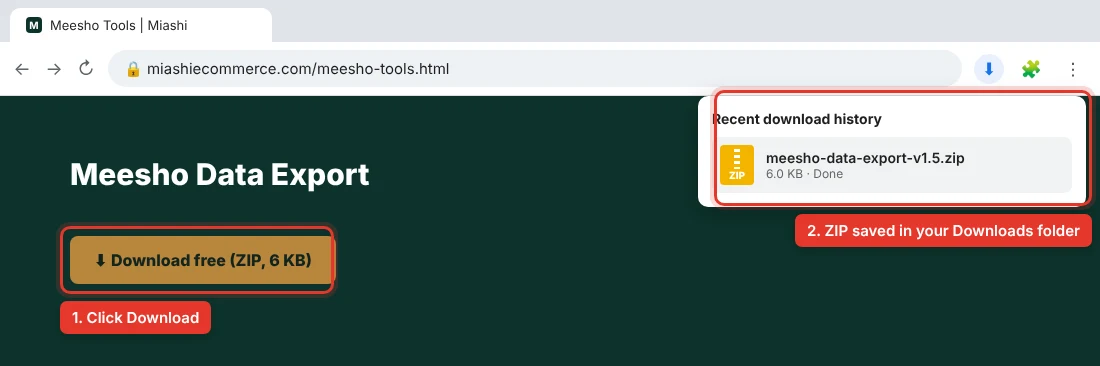
Click the Download free button. The file meesho-data-export-v1.5.zip is saved in your Downloads folder.
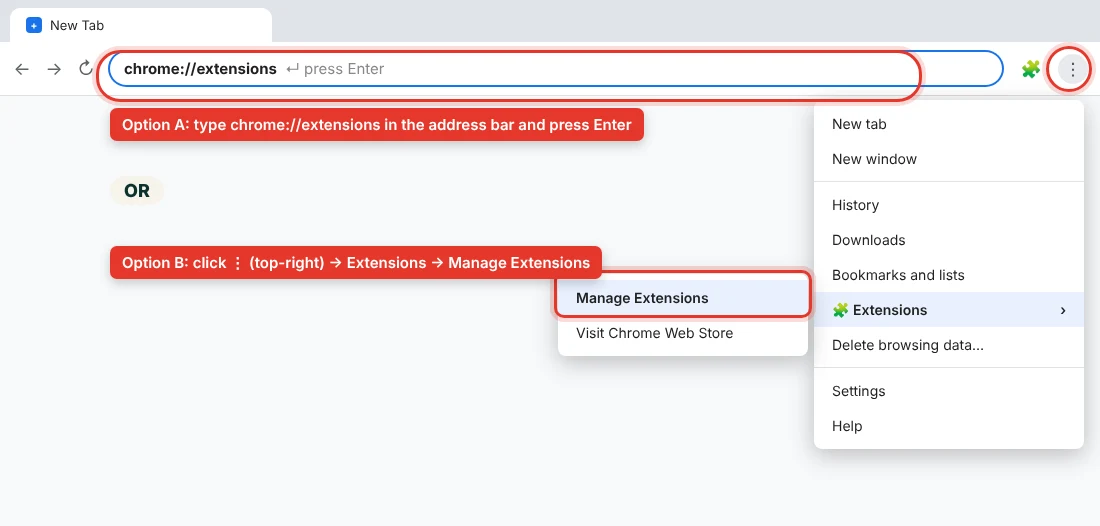
Type chrome://extensions in the address bar and press Enter (click the code to copy it). Or click ⋮ at the top-right of Chrome → Extensions → Manage Extensions.
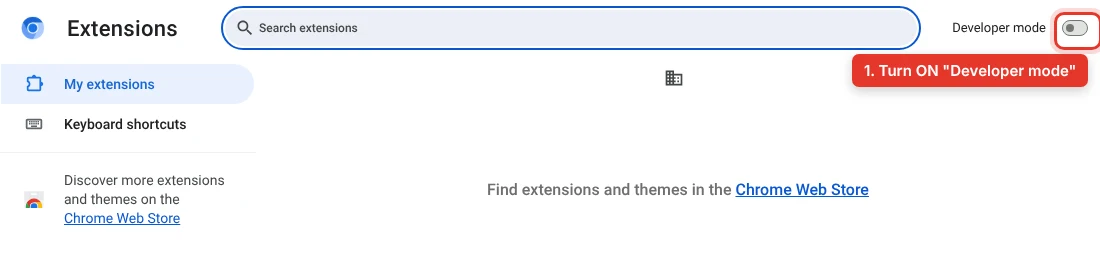
On the Extensions page, switch on Developer mode in the top-right corner.
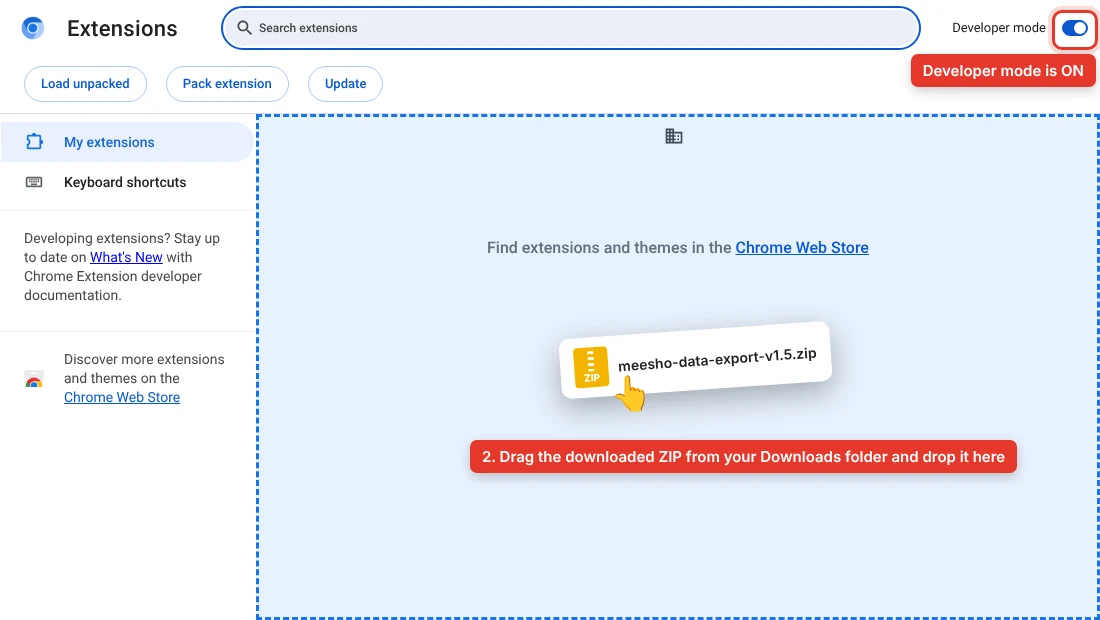
Open your Downloads folder, then drag meesho-data-export-v1.5.zip and drop it anywhere on the Extensions page.
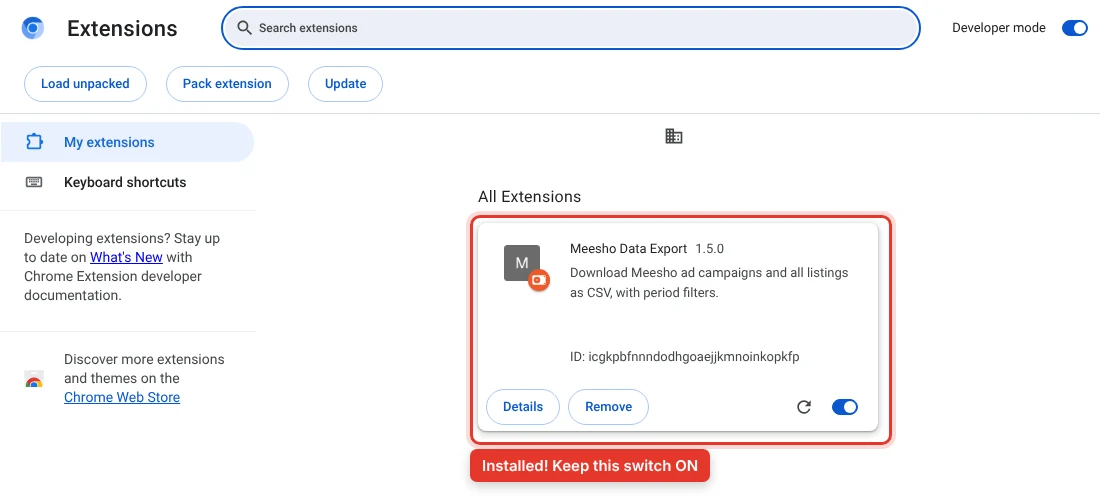
Meesho Data Export 1.5.0 now appears in your extensions. Keep its blue switch ON.
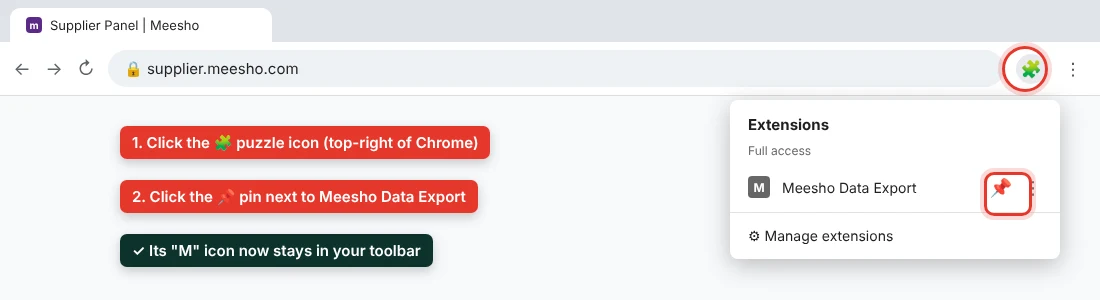
Click the 🧩 puzzle icon at the top-right of Chrome, then the 📌 pin next to Meesho Data Export. Its M icon now stays in your toolbar.
edge://extensions, switch on Developer mode in the left sidebar, then drag the ZIP onto the page.How to use it
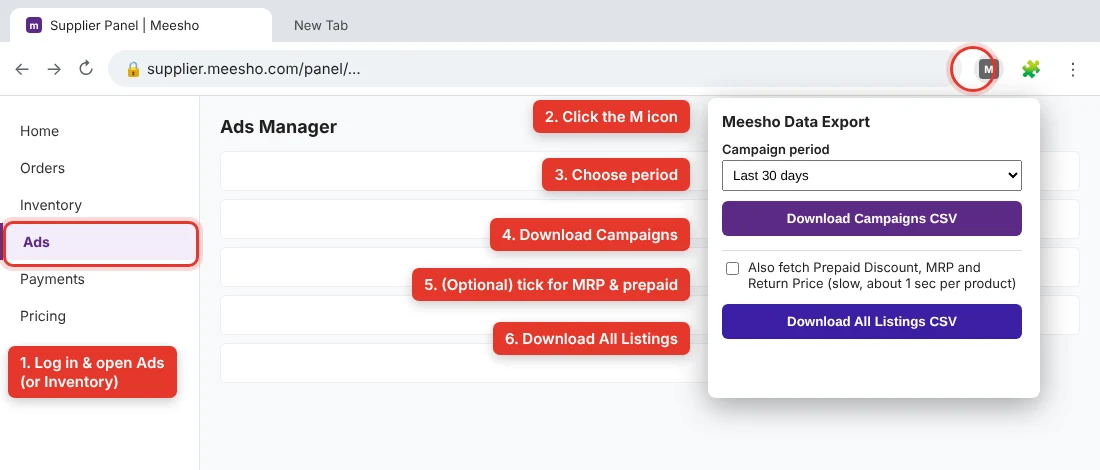
Log in to the Meesho Supplier Panel in the same browser. The tool works on the Meesho tab you have open.
Open Ads (for campaigns) or Inventory (for listings), click the M icon, pick a period and click the download button you need.
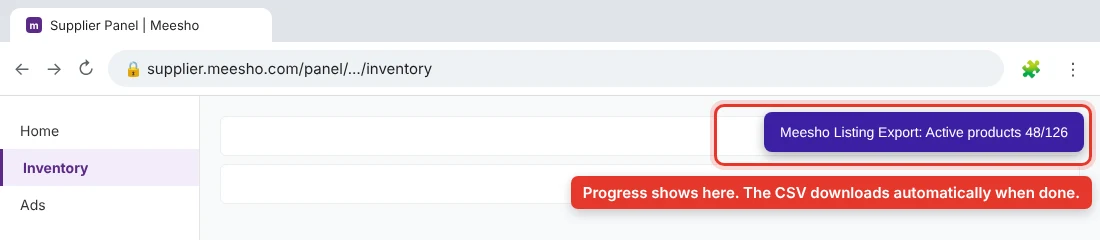
For listings, a purple progress box appears on the Meesho page. You can close the popup; the CSV downloads automatically when it finishes.
Before vs after
What changes when you stop exporting manually.
| Task | Supplier Panel only | With Meesho Data Export |
|---|---|---|
| All campaigns with ROI, CPC, CPO in one sheet | ✕ | ✓ |
| Campaign data for a custom date range | One view at a time | ✓ One click |
| All 5 listing tabs (Active → Paused) in one file | ✕ | ✓ |
| Days to stock-out for every SKU | Per SKU on screen | ✓ Whole catalog |
| Prepaid discount, MRP & return price for every SKU | Open each product | ✓ Optional |
| Block reasons for every blocked SKU | Per SKU on screen | ✓ In one column |
Is it safe?
Yes. Here is exactly what the extension can and cannot do.
Only works on Meesho
Its only site permission is supplier.meesho.com. It can't read any other website you visit.
Only when you click
It runs only when you click a download button, and only on the tab you have open.
No servers, no tracking
It talks only to Meesho's own panel, using your existing login. The CSV is created in your browser and saved to your computer.
Never stores your password
It doesn't ask for your login, store passwords, or change anything in your account. It only reads data.
Open code
The ZIP contains just 3 small files (manifest.json, popup.html, popup.js). Anyone technical can open and check them.
Remove anytime
On chrome://extensions, click Remove on Meesho Data Export and it's gone.
FAQs
Is the Meesho Data Export tool free?
Yes, it's completely free for all Meesho sellers. There's no sign-up and no limit on downloads.
It says "Open the Meesho Supplier Panel tab first". What do I do?
Click the extension while you're on a supplier.meesho.com tab where you're logged in. For campaigns, open the Ads page; for listings, open the Inventory page.
Chrome shows "Disable developer mode extensions". Is that a problem?
No. Chrome shows this for every extension installed in Developer mode. Close the message; the tool keeps working.
Does it work on mobile?
No. Chrome extensions only work on desktop Chrome or Edge (Windows or Mac).
The CSV shows strange characters in Excel. How do I fix it?
The file is saved as UTF-8 so Hindi and special characters stay intact. If Excel still shows odd text, use Data → From Text/CSV and choose UTF-8, or open it in Google Sheets.
How do I update to a newer version?
On chrome://extensions, click Remove on the old Meesho Data Export. Then download the new ZIP from this page and drag it onto the Extensions page again.
Nothing happens when I drop the ZIP. What do I do?
Check that Developer mode is switched ON, and drop the file on the chrome://extensions page itself, not on another tab. If it still doesn't work, update Chrome to the latest version (⋮ → Help → About Google Chrome) and try again.
Is this an official Meesho tool?
No. It's an independent free tool built by Miashi Consultancy for sellers. It isn't affiliated with or endorsed by Meesho.
Got the data? Let's turn it into sales.
Miashi manages Meesho accounts end to end: ads, pricing, catalog fixes and inventory planning, built on the same data this tool exports.
Meesho is a trademark of its owner. This tool is provided free "as is" by Miashi Consultancy and is not affiliated with Meesho. Meesho may change its panel at any time, which can stop the tool working until we release an update.